

Learning goals
- Create a copy of the sample application repository
- Verify the CI/CD pipeline runs successfully
- Install the Kosli CLI and create an API key
- Understand the basic structure of the application and its deployment process
Introduction
Before diving into Kosli’s features, you need to set up your account and verify that your sample application builds and deploys correctly. This lab uses a simple Java application with a complete CI/CD pipeline already configured in GitHub Actions. The pipeline builds the application, creates a Docker image, runs tests, and deploys it. In subsequent labs, you’ll integrate Kosli to track all these activities.Exercise
1
Fork the sample repository
- Navigate to github.com/kosli-dev/labs
- Click the Use this template button in the top-right corner
- Select Create a new repository
- Set your personal GitHub account as the Owner and name the repository
labs - Click Create repository from template
2
Enable GitHub Actions
- Go to your repository on GitHub
- Click the Actions tab
- If prompted, click I understand my workflows, go ahead and enable them
- If the workflow doesn’t start automatically, trigger it manually:
- Click Main workflow in the left sidebar
- Click Run workflow, select
main, and click Run workflow
3
Verify the pipeline
In the Actions tab, click the most recent workflow run and observe the jobs: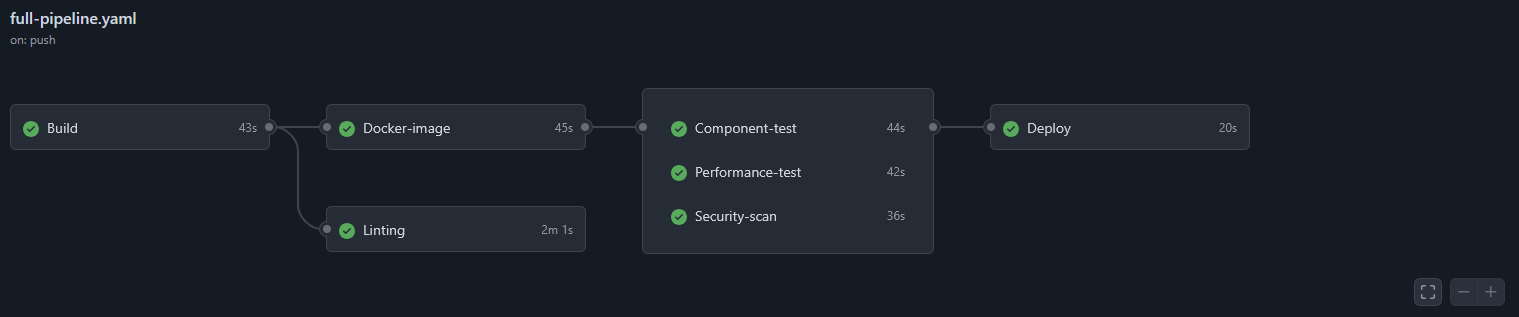
Wait for all jobs to show green checkmarks.
Common issues
Common issues
- Docker-image job fails with permission error: Make sure your repository has package write permissions enabled.
- Linting shows warnings: This is expected and won’t fail the build (
DISABLE_ERRORSis set totrue).
4
Install the Kosli CLI
Run the one-line install script:
5
Create a Kosli API key
- Log in to app.kosli.com/settings/profile
- Navigate to the API Keys section
- Click Add API Key, give it a name (e.g., “CLI Access”), and copy the key immediately — it won’t be shown again
6
Explore the workflow file
In your repository, navigate to
.github/workflows/full-pipeline.yaml and review the structure:- Notice how it triggers on every push
- Observe the environment variables at the top
- See how artifacts are shared between jobs using
upload-artifactanddownload-artifact - Note the dependencies between jobs (e.g., Docker-image requires Build to complete first)
7
View the published Docker image
- Go to your GitHub profile page
- Click the Packages tab
- You should see the
labspackage - Click it to view the Docker image details — note the image tag (
latest) and SHA digest
Verification checklist
Before moving to the next lab, confirm:- Copy of the labs repository under your GitHub account
- GitHub Actions completed all jobs successfully
- Docker image published to your GitHub Container Registry
- Kosli CLI installed (
kosli versionworks) - API key created and
kosli list flowsreturns successfully - You understand the basic pipeline structure