> ## Documentation Index
> Fetch the complete documentation index at: https://docs.kosli.com/llms.txt
> Use this file to discover all available pages before exploring further.
# Customer KMS keys
> Create cross-account AWS KMS keys for Kosli Dedicated and share them with Kosli for data-at-rest encryption.
Kosli Dedicated is a single-tenant Kosli instance, hosted on infrastructure dedicated to your organization. Kosli creates dedicated KMS keys to encrypt all data at rest, but some customers may wish to provide Kosli with their own AWS KMS keys. This page explains the process for doing this.
Kosli hosts your data across two AWS regions — a **primary** and a **secondary** — so you provide a key in each region. This page walks through creating those keys in the AWS Console (with an equivalent [Terraform example](#terraform-example)) and sharing their ARNs with Kosli.
A member of the Kosli Customer Success team will give you:
* The **primary** and **secondary** AWS regions your instance uses.
* The **Kosli AWS account ID** (`<>`) to grant access to in the key policy.
## Prerequisites
* An AWS account you will use to own the KMS keys.
* Permissions in that account to create and manage KMS keys.
* The primary/secondary regions and the Kosli account ID (`<>`) from a member of the Kosli Customer Success team.
In addition, you should ensure that you have an in-house operational procedure to guarantee the availability of the keys; if the keys are destroyed, or the Kosli grant is revoked, Kosli's software will not be able to store new attestations or access existing data. Choosing to provide KMS keys to Kosli is a commitment to maintaining the availability of those keys.
## Choose the key shape
AWS does not permit **multi-region KMS keys** whose key material lives in a custom key store.
* If your key material can live in KMS (generated or imported), create **one multi-region key** in the primary region and replicate it into the secondary region. This is the path described below.
* If your policy requires an [AWS CloudHSM key store](https://docs.aws.amazon.com/kms/latest/developerguide/keystore-cloudhsm.html) or an external key store for key material, create **two single-region keys** — one in each region. See [Single-region keys](#single-region-keys) for the differences.
Most of the steps are identical for both shapes.
The instructions use the AWS Console. If your organization uses AWS CDK or another IaC tool, the [Terraform example](#terraform-example) gives enough detail to translate.
## Create the primary key
1. Sign in to the AWS account that will own the keys and open the **AWS KMS** service.
2. KMS is a regional service. Switch the console to the **primary Kosli region**.
 3. In the left-hand menu, select **Customer-managed keys**.
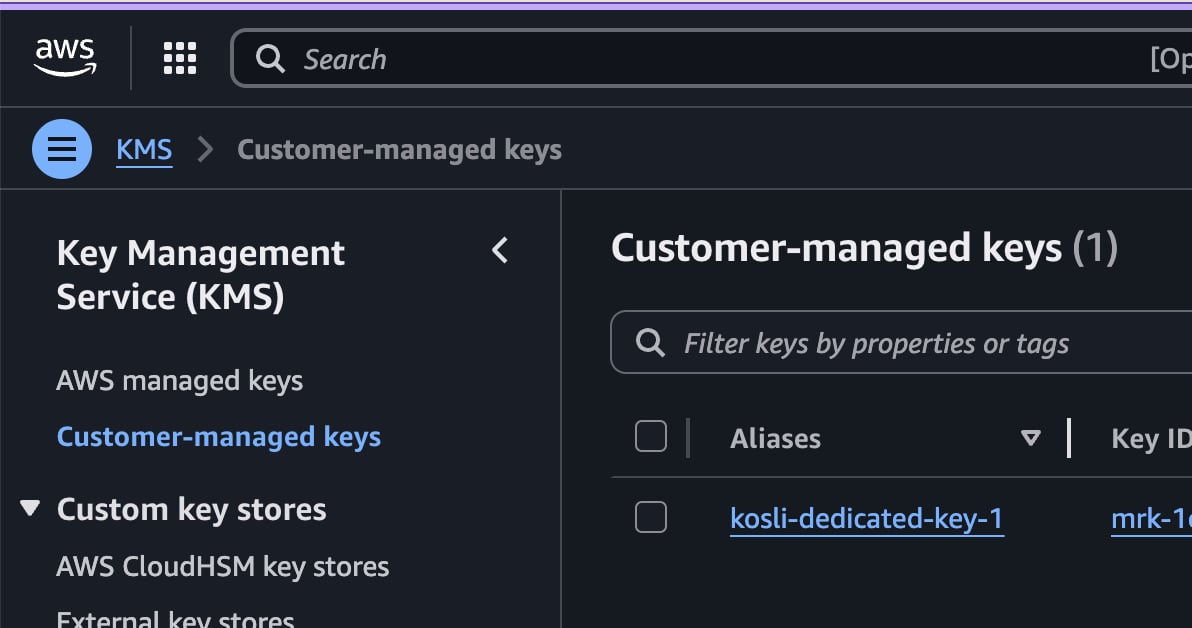 4. Click **Create key** in the top right to start the wizard.
### Step 1 — Configure the key
* **Key type:** Symmetric
* **Key usage:** Encrypt and decrypt
* Expand **Advanced options** and, under **Regionality**, select **Multi-region key**.
4. Click **Create key** in the top right to start the wizard.
### Step 1 — Configure the key
* **Key type:** Symmetric
* **Key usage:** Encrypt and decrypt
* Expand **Advanced options** and, under **Regionality**, select **Multi-region key**.
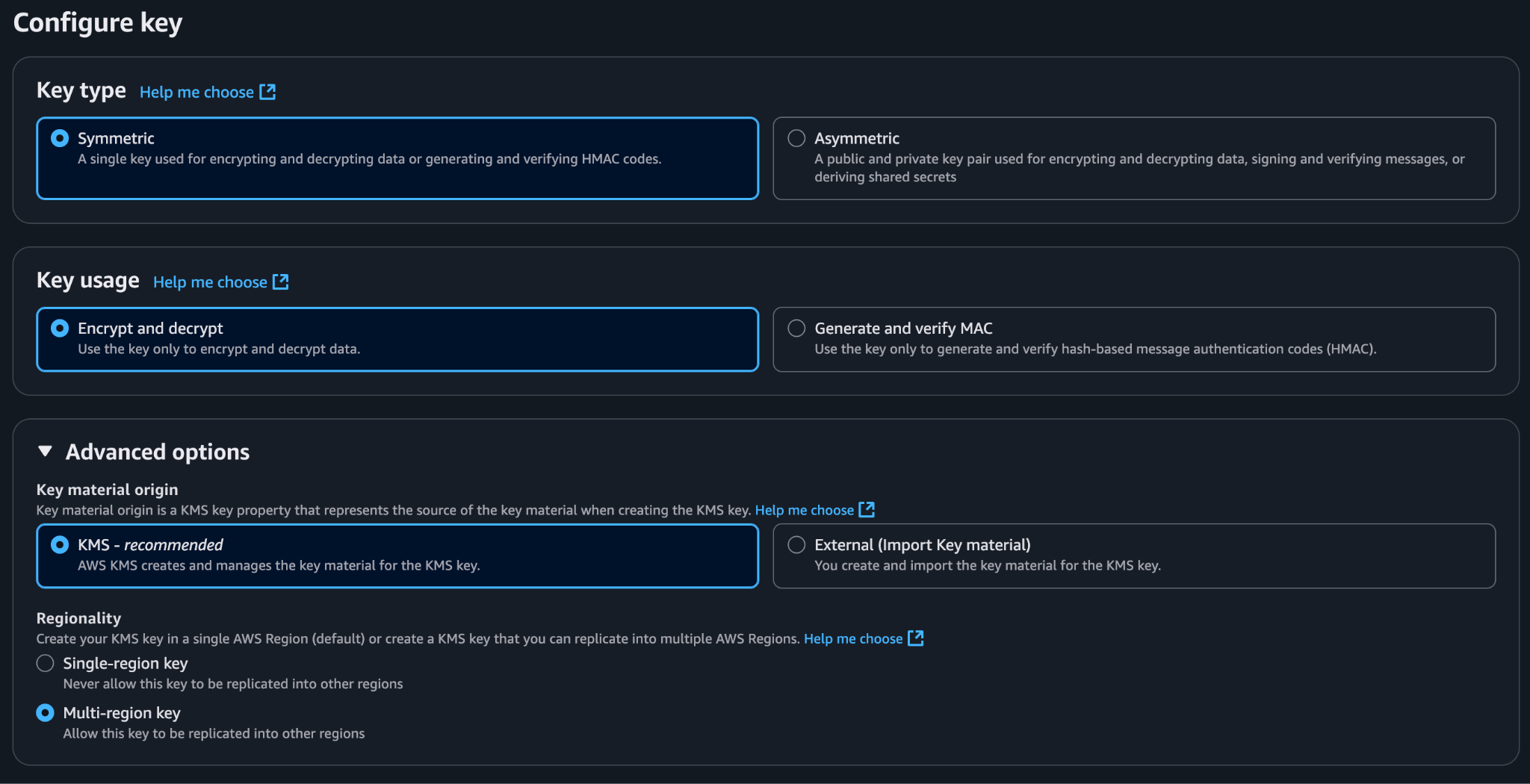 Selecting **Multi-region key** rules out a custom key store as the key material origin. You can still choose **KMS** or **External (Import Key material)**. If you need CloudHSM or an external key store, see [Single-region keys](#single-region-keys).
Click **Next**.
### Step 2 — Add labels
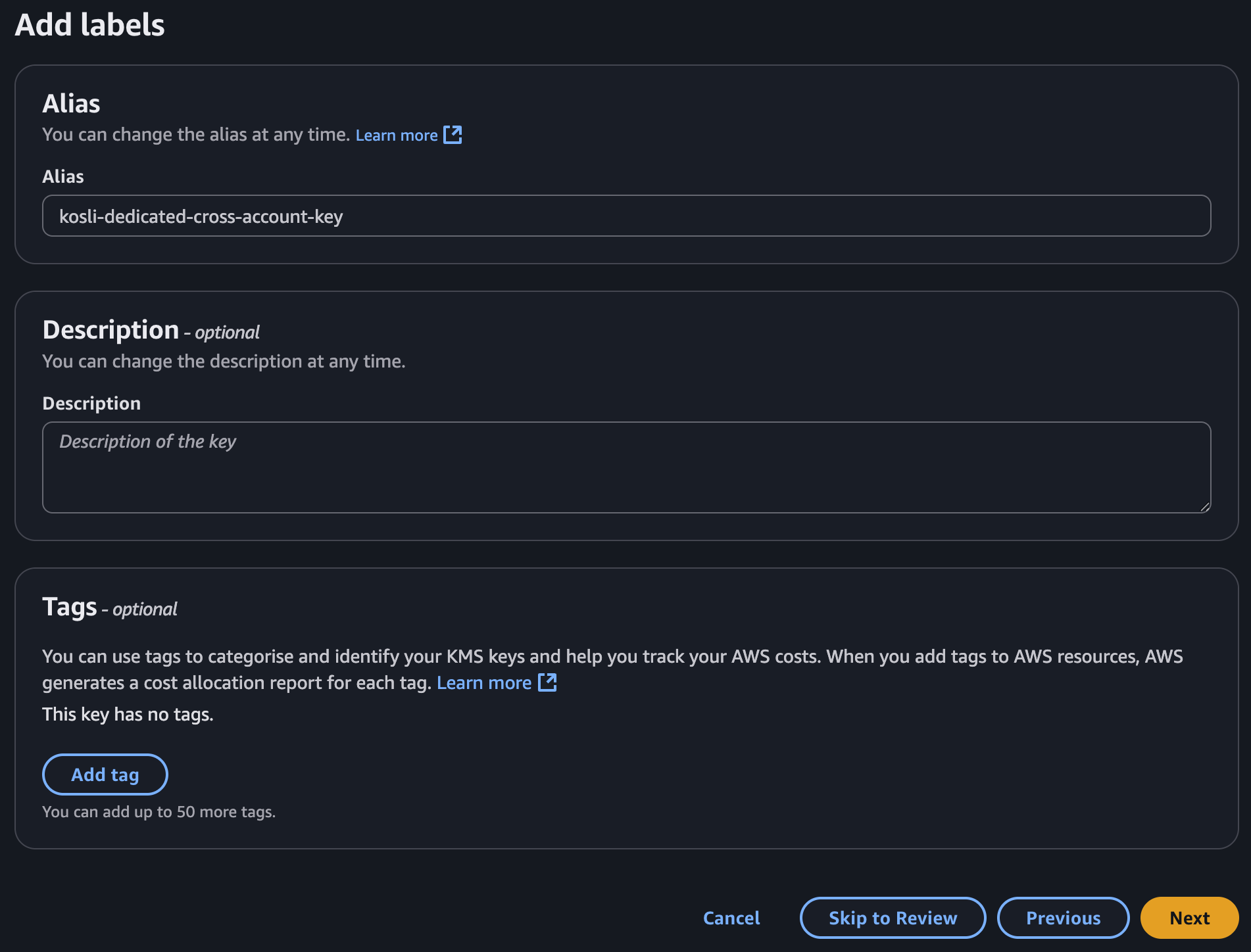
* **Alias:** use whatever labelling strategy your organization prefers, for example `alias/kosli-dedicated-cross-account-key`.
* Optionally add a description and tags to help your team.
Selecting **Multi-region key** rules out a custom key store as the key material origin. You can still choose **KMS** or **External (Import Key material)**. If you need CloudHSM or an external key store, see [Single-region keys](#single-region-keys).
Click **Next**.
### Step 2 — Add labels
* **Alias:** use whatever labelling strategy your organization prefers, for example `alias/kosli-dedicated-cross-account-key`.
* Optionally add a description and tags to help your team.
 Click **Next**.
### Step 3 — Define key administrators
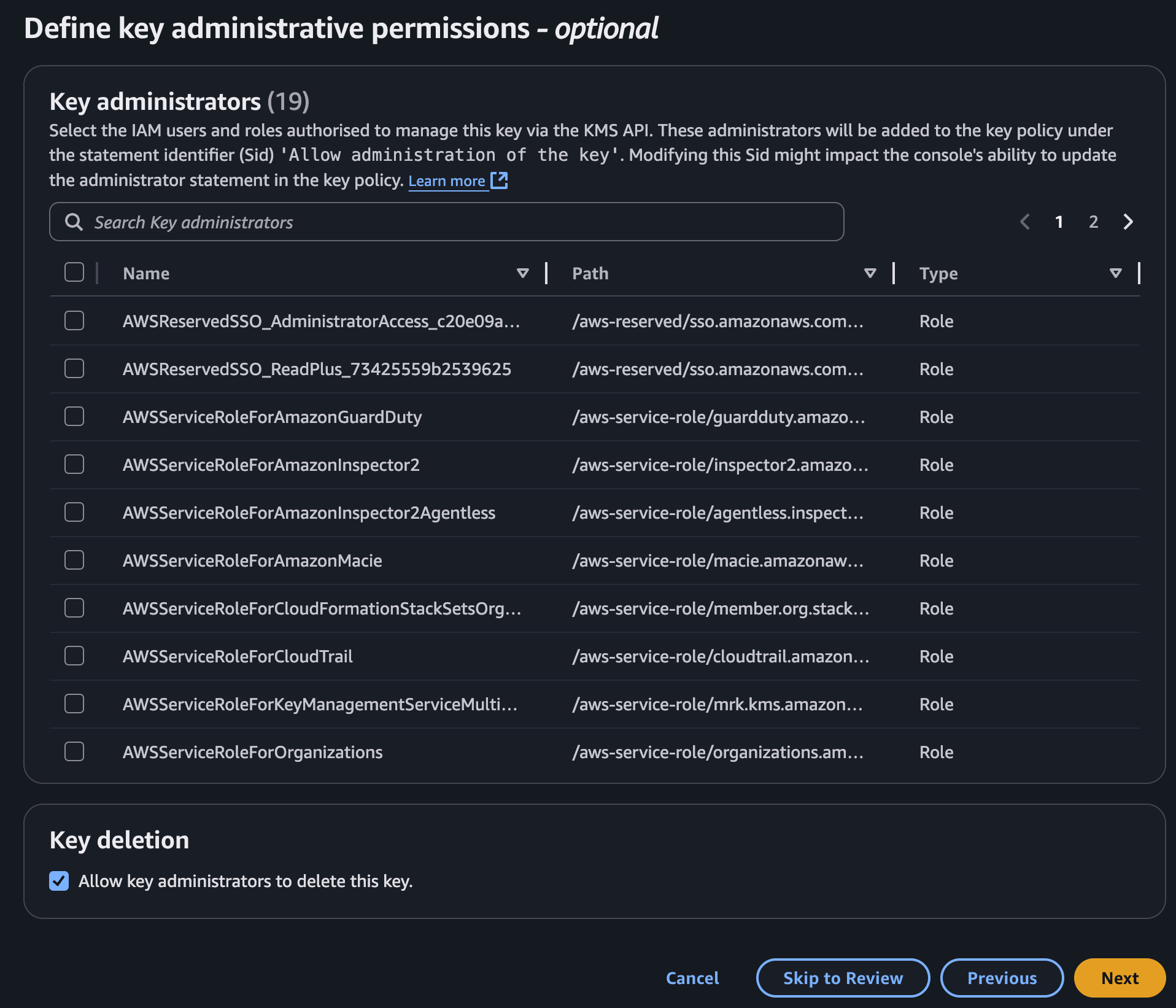
The key is not used from inside your AWS account, so there is usually no reason to add key administrators.
To protect against accidental deletion, untick **Allow key administrators to delete this key** under **Key deletion**.
Click **Next**.
### Step 3 — Define key administrators
The key is not used from inside your AWS account, so there is usually no reason to add key administrators.
To protect against accidental deletion, untick **Allow key administrators to delete this key** under **Key deletion**.
 Click **Next**.
### Step 4 — Define key usage permissions
The key policy is managed as JSON on the next screen, so leave the usage permissions on this page unselected. Do **not** add an "Other AWS account" here either — cross-account access is granted via the JSON policy.
Click **Next**.
### Step 4 — Define key usage permissions
The key policy is managed as JSON on the next screen, so leave the usage permissions on this page unselected. Do **not** add an "Other AWS account" here either — cross-account access is granted via the JSON policy.
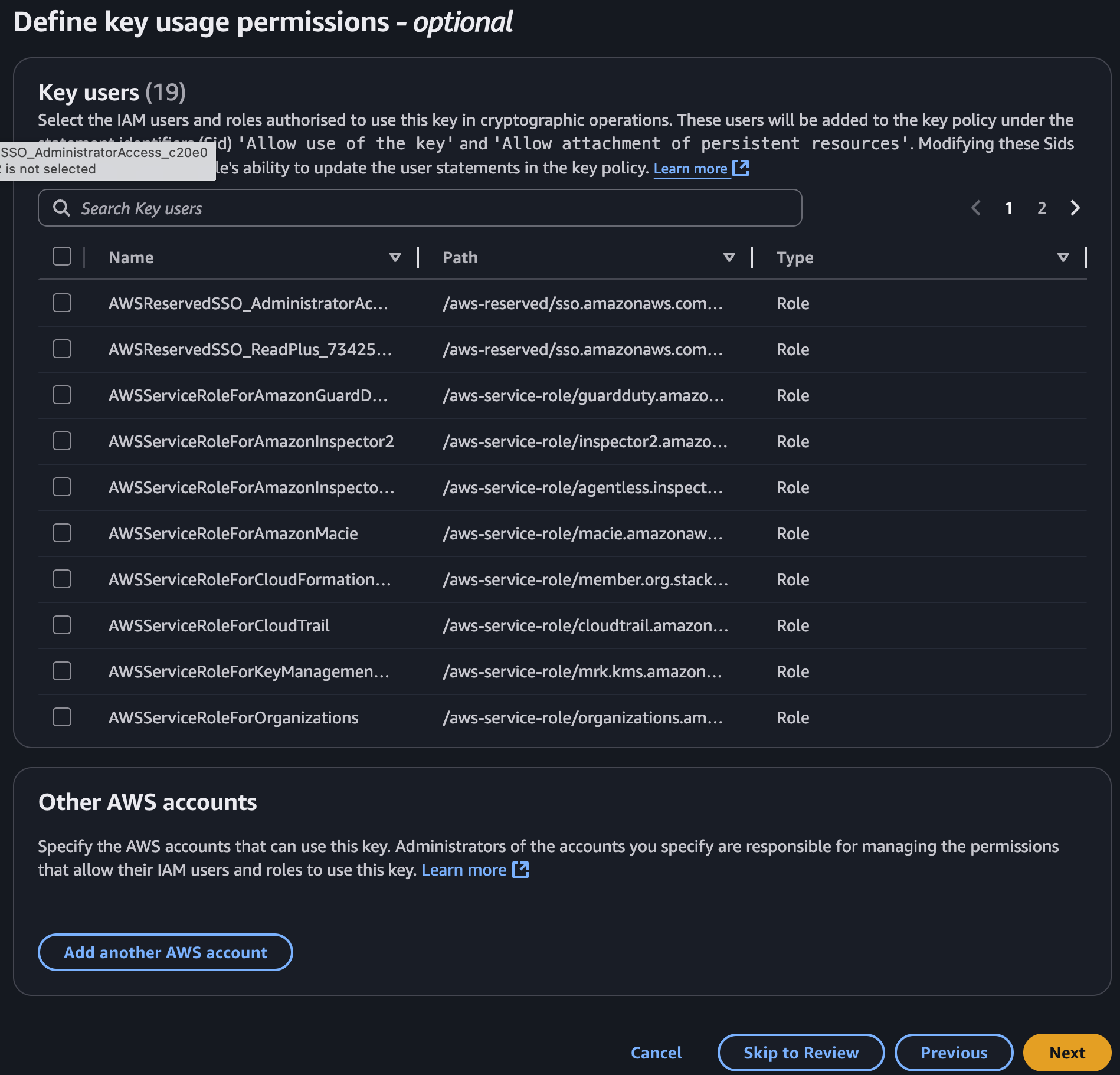 Click **Next**.
### Step 5 — Edit the key policy
The console loads a default policy that grants access to your account root. Click **Edit**, then click **Add new statement** and add a **second statement** to the `Statement` array with the following content. A member of the Kosli Customer Success team will give you the value for `<>`.
Click **Next**.
### Step 5 — Edit the key policy
The console loads a default policy that grants access to your account root. Click **Edit**, then click **Add new statement** and add a **second statement** to the `Statement` array with the following content. A member of the Kosli Customer Success team will give you the value for `<>`.
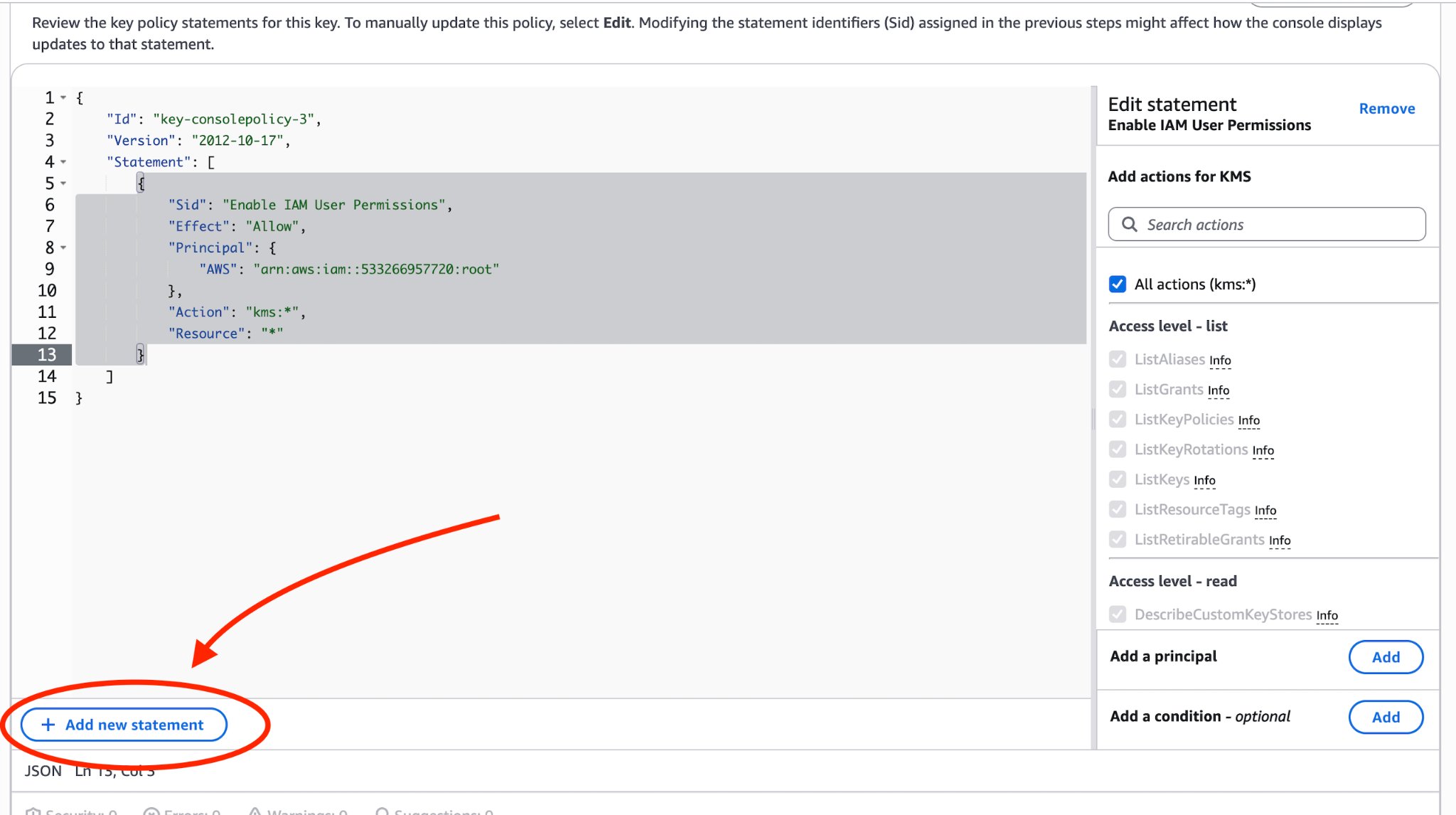 ```json theme={"theme":"dracula","languages":{"custom":["/languages/rego.json"]}}
{
"Sid": "Allow Kosli-Dedicated to use this KMS key",
"Effect": "Allow",
"Principal": {
"AWS": [
"arn:aws:iam::<>:root"
]
},
"Action": [
"kms:CreateGrant",
"kms:Encrypt",
"kms:Decrypt",
"kms:ReEncrypt*",
"kms:GenerateDataKey*",
"kms:DescribeKey"
],
"Resource": "*"
}
```
Make sure you add a comma between the existing statement object and this new one.
```json theme={"theme":"dracula","languages":{"custom":["/languages/rego.json"]}}
{
"Sid": "Allow Kosli-Dedicated to use this KMS key",
"Effect": "Allow",
"Principal": {
"AWS": [
"arn:aws:iam::<>:root"
]
},
"Action": [
"kms:CreateGrant",
"kms:Encrypt",
"kms:Decrypt",
"kms:ReEncrypt*",
"kms:GenerateDataKey*",
"kms:DescribeKey"
],
"Resource": "*"
}
```
Make sure you add a comma between the existing statement object and this new one.
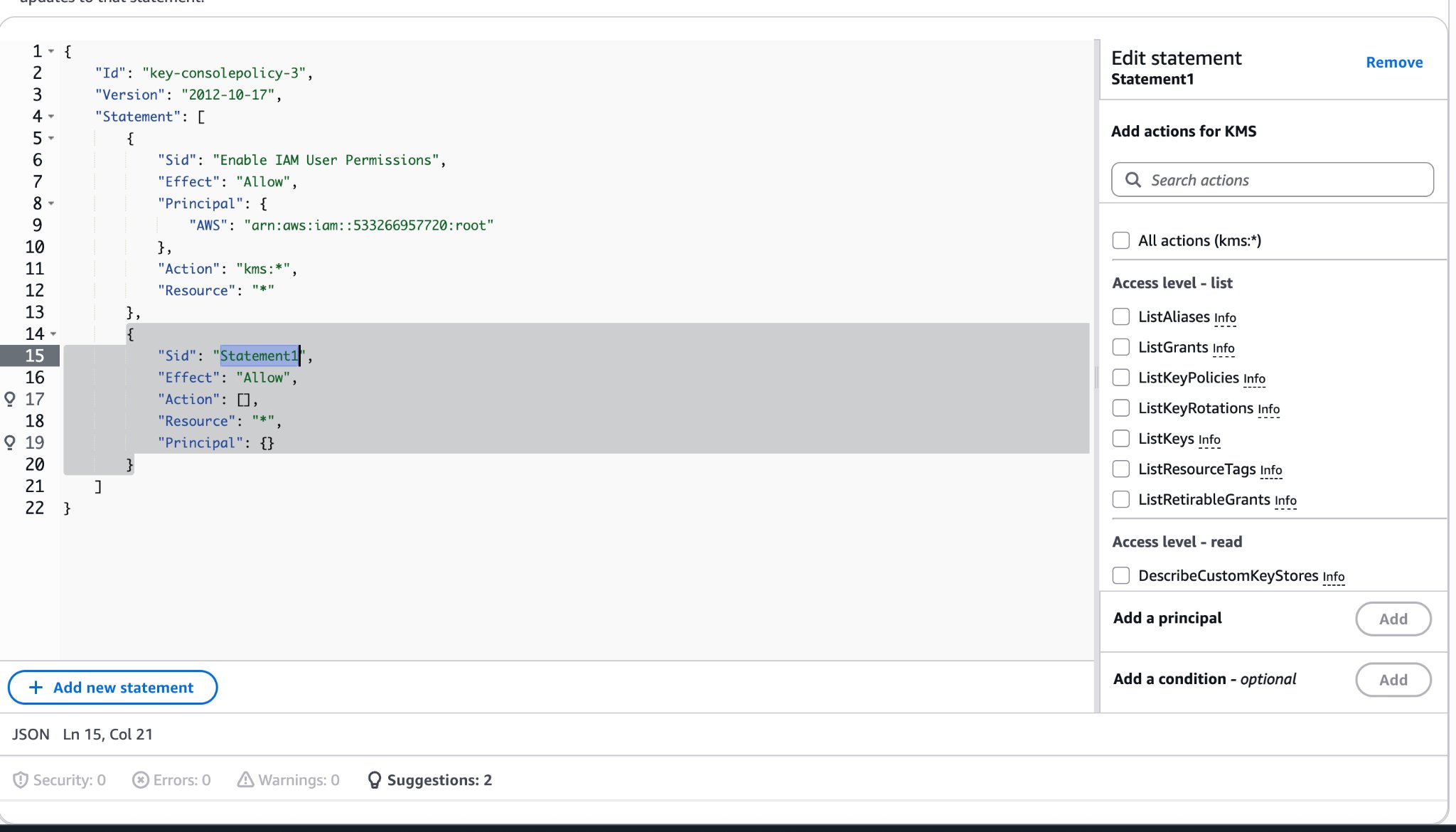 Click **Preview** to format and validate the JSON. The preview shows both statements — one for your AWS account root, one for the Kosli-Dedicated account.
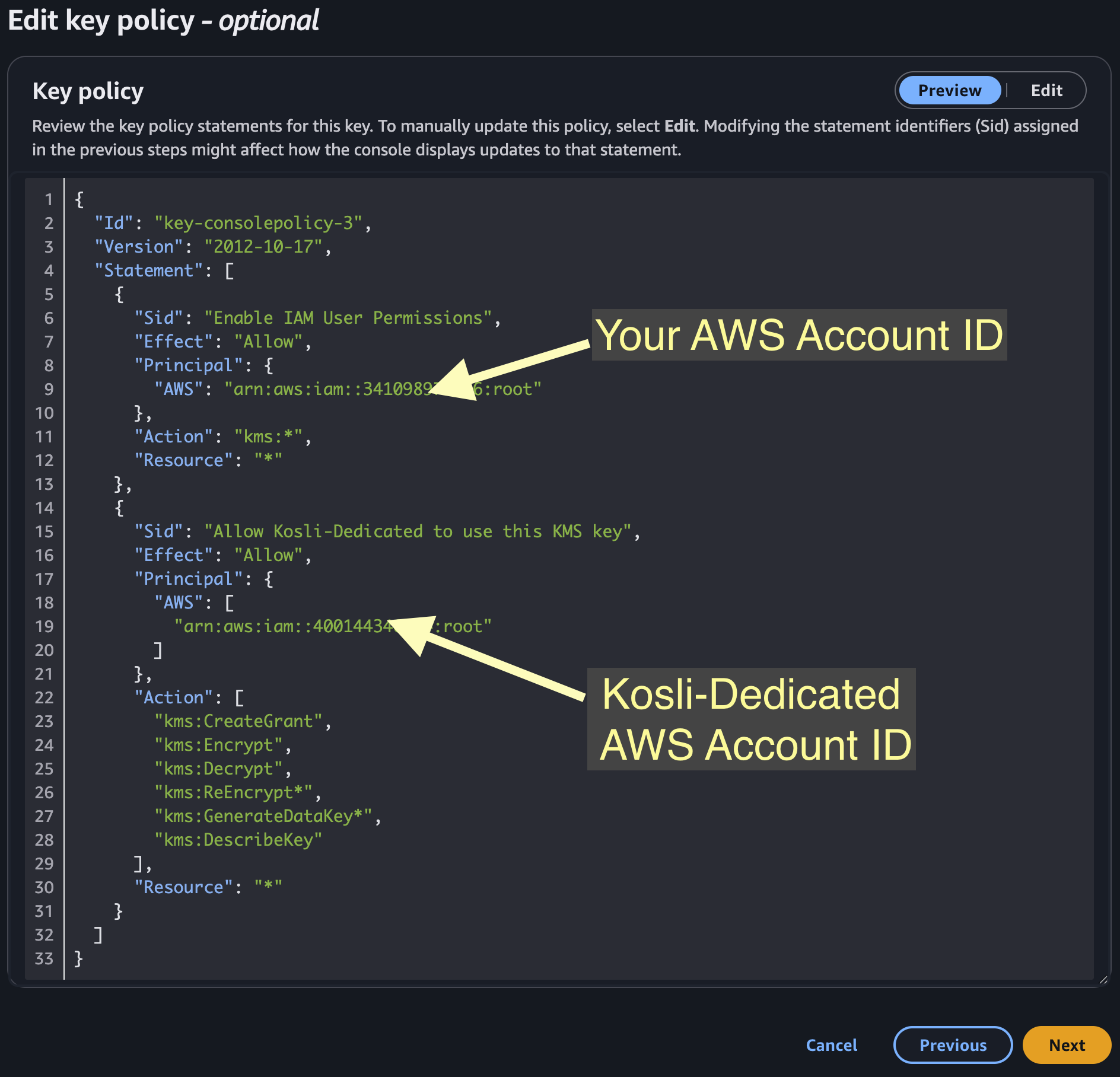 Click **Next**.
For background on key policy syntax, see the [AWS key policies documentation](https://docs.aws.amazon.com/kms/latest/developerguide/key-policy-overview.html).
### Step 6 — Review and finish
Confirm the settings match:
| Field | Value |
| - | - |
| Key type | Symmetric |
| Key spec | `SYMMETRIC_DEFAULT` |
| Key usage | Encrypt and decrypt |
If anything needs changing, click **Edit** for that section. Otherwise click **Finish** to create the key. You are returned to the customer-managed keys list with the new key at the top.
## Replicate the key to the secondary region
1. Click the new key's alias to open its details.
2. Select the **Regionality** tab. The **Primary key** panel shows that the key has no replicas yet.
Click **Next**.
For background on key policy syntax, see the [AWS key policies documentation](https://docs.aws.amazon.com/kms/latest/developerguide/key-policy-overview.html).
### Step 6 — Review and finish
Confirm the settings match:
| Field | Value |
| - | - |
| Key type | Symmetric |
| Key spec | `SYMMETRIC_DEFAULT` |
| Key usage | Encrypt and decrypt |
If anything needs changing, click **Edit** for that section. Otherwise click **Finish** to create the key. You are returned to the customer-managed keys list with the new key at the top.
## Replicate the key to the secondary region
1. Click the new key's alias to open its details.
2. Select the **Regionality** tab. The **Primary key** panel shows that the key has no replicas yet.
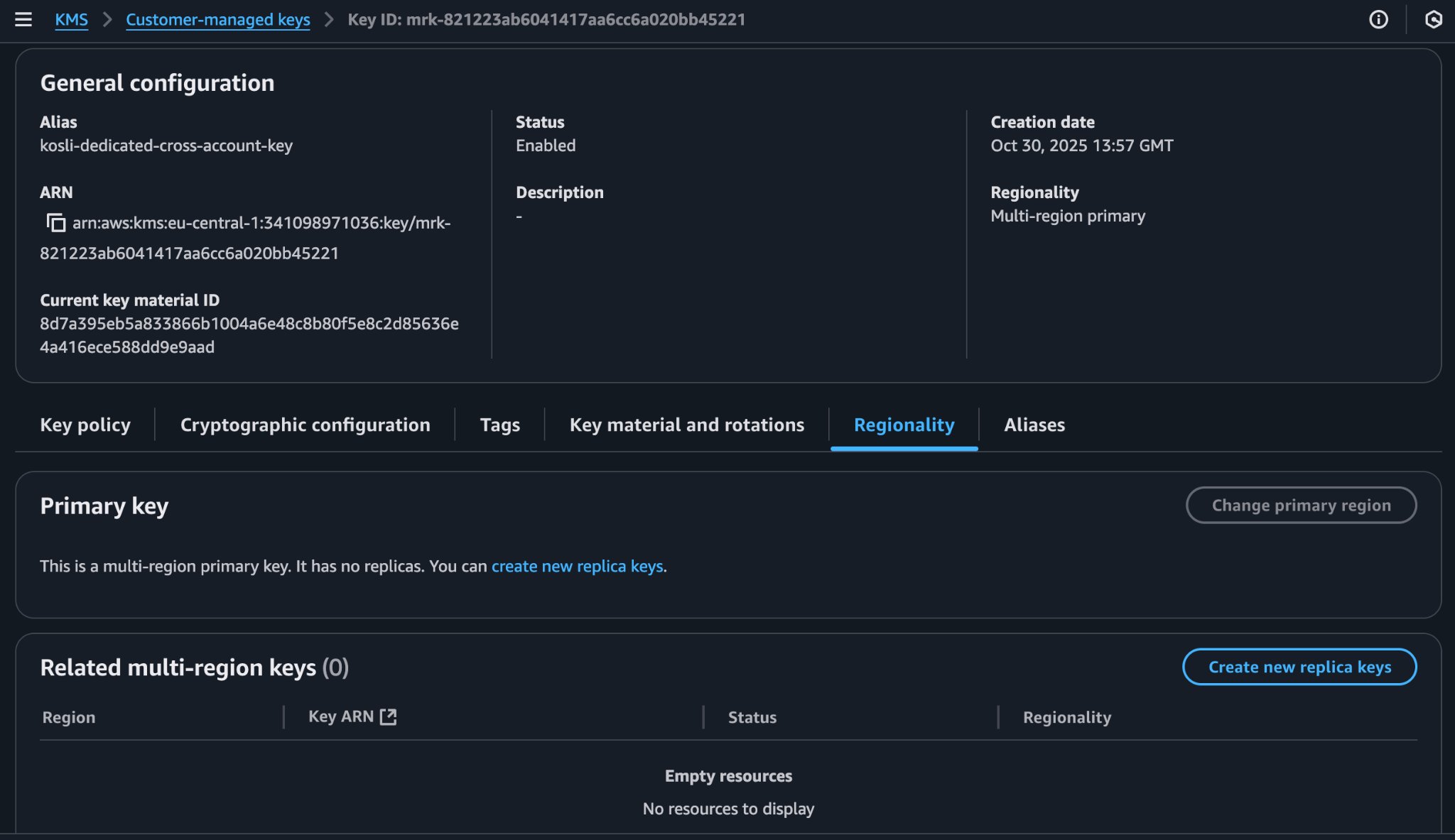 3. Click **Create new replica keys**.
4. In the region dropdown (which excludes the primary region), tick the **Kosli secondary region** and click **Next**.
3. Click **Create new replica keys**.
4. In the region dropdown (which excludes the primary region), tick the **Kosli secondary region** and click **Next**.
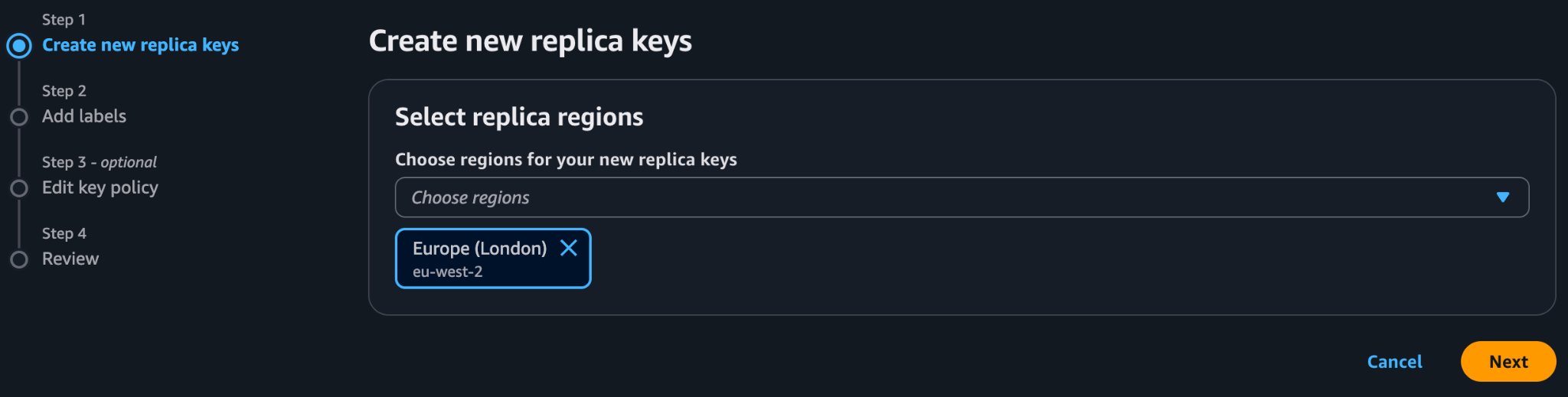 5. The **Add labels** screen is pre-populated from the primary key. Change if your organization requires it, otherwise click **Next**.
6. The console pre-populates the replica's policy from the primary key — no changes needed. Click **Next**.
7. Review the **Confirmation** message, tick the acknowledgement box, and click **Create new replica keys**.
The primary key's details page reloads with the replica listed under **Related multi-region keys**.
## Share the key ARNs with Kosli
Kosli uses the primary and replica keys to encrypt data. Send both ARNs to a member of the Kosli Customer Success team:
* The **primary key ARN** — from the **General configuration** panel of the primary key's details page.
* The **replica key ARN** — from the **Related multi-region keys** panel on the same page, or from the replica key's own details page in the secondary region.
5. The **Add labels** screen is pre-populated from the primary key. Change if your organization requires it, otherwise click **Next**.
6. The console pre-populates the replica's policy from the primary key — no changes needed. Click **Next**.
7. Review the **Confirmation** message, tick the acknowledgement box, and click **Create new replica keys**.
The primary key's details page reloads with the replica listed under **Related multi-region keys**.
## Share the key ARNs with Kosli
Kosli uses the primary and replica keys to encrypt data. Send both ARNs to a member of the Kosli Customer Success team:
* The **primary key ARN** — from the **General configuration** panel of the primary key's details page.
* The **replica key ARN** — from the **Related multi-region keys** panel on the same page, or from the replica key's own details page in the secondary region.
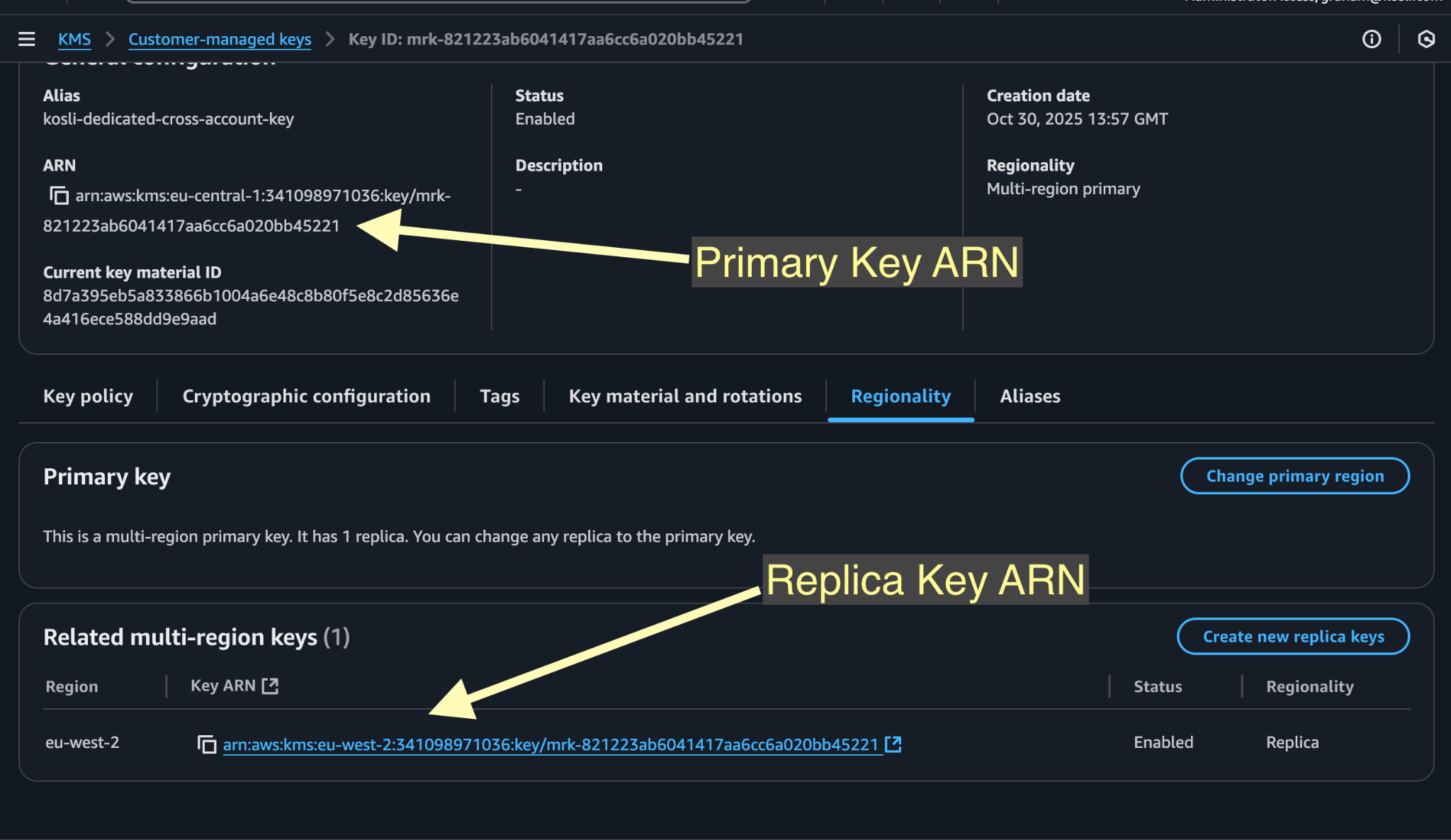 For a multi-region key the two ARNs are identical except for the region segment.
A key ARN is an identifier, not a secret: only the AWS account named in the key policy can use the key, so the ARNs can be shared over email.
## Single-region keys
If your organization requires a CloudHSM key store (or an external key store) for the key material, create **two single-region keys** instead of one replicated multi-region key.
The steps to create the primary key are the same as above, with two differences:
* **Do not** tick **Multi-region key** under **Regionality**.
* Under **Key material origin**, select your CloudHSM key store (or external key store) rather than KMS.
Once the primary key exists, switch the console to the **secondary Kosli region** and repeat the process. Include a reference to the primary key's ARN or alias in the secondary key's **Description** so the pairing is obvious later.
Share both ARNs with a member of the Kosli Customer Success team. Unlike a multi-region key, the two single-region ARNs differ beyond just the region segment.
## Terraform example
The following is the minimum Terraform needed to create the multi-region key and its replica for Kosli Dedicated. Set `primary_aws_region`, `secondary_aws_region`, and `kosli_dedicated_account_id` for your instance.
This example uses the top-level `region` argument on `aws_kms_key`, `aws_kms_alias`, and `aws_kms_replica_key`, which requires **AWS provider v6.0 or later**. On earlier versions, use aliased provider blocks instead.
```hcl theme={"theme":"dracula","languages":{"custom":["/languages/rego.json"]}}
variable "primary_aws_region" {
type = string
description = "Primary AWS region for your Kosli Dedicated instance"
}
variable "secondary_aws_region" {
type = string
description = "Secondary AWS region for your Kosli Dedicated instance"
}
variable "kosli_dedicated_account_id" {
type = string
description = "Kosli AWS account ID, supplied by the Kosli Customer Success team"
}
data "aws_caller_identity" "current" {}
resource "aws_kms_key" "primary" {
description = "Multi-region key for Kosli-Dedicated"
deletion_window_in_days = 30
multi_region = true
region = var.primary_aws_region
key_usage = "ENCRYPT_DECRYPT"
customer_master_key_spec = "SYMMETRIC_DEFAULT"
policy = jsonencode({
Version = "2012-10-17"
Id = "kosli-dedicated-kms"
Statement = [
{
Sid = "Enable IAM User Permissions"
Effect = "Allow"
Principal = {
AWS = "arn:aws:iam::${data.aws_caller_identity.current.account_id}:root"
}
Action = "kms:*"
Resource = "*"
},
{
Sid = "Allow Kosli-Dedicated to use this KMS key"
Effect = "Allow"
Principal = {
AWS = "arn:aws:iam::${var.kosli_dedicated_account_id}:root"
}
Action = [
"kms:CreateGrant",
"kms:Encrypt",
"kms:Decrypt",
"kms:ReEncrypt*",
"kms:GenerateDataKey*",
"kms:DescribeKey"
]
Resource = "*"
}
]
})
}
resource "aws_kms_alias" "primary_alias" {
region = var.primary_aws_region
name = "alias/kosli-dedicated-cross-account-key"
target_key_id = aws_kms_key.primary.key_id
}
resource "aws_kms_replica_key" "replica" {
region = var.secondary_aws_region
description = "Multi-region replica key"
deletion_window_in_days = 30
primary_key_arn = aws_kms_key.primary.arn
policy = aws_kms_key.primary.policy
}
resource "aws_kms_alias" "replica_alias" {
region = var.secondary_aws_region
name = "alias/kosli-dedicated-cross-account-key"
target_key_id = aws_kms_replica_key.replica.key_id
}
```
This documentation is built and hosted on [Mintlify](https://mintlify.com), a developer documentation platform.
For a multi-region key the two ARNs are identical except for the region segment.
A key ARN is an identifier, not a secret: only the AWS account named in the key policy can use the key, so the ARNs can be shared over email.
## Single-region keys
If your organization requires a CloudHSM key store (or an external key store) for the key material, create **two single-region keys** instead of one replicated multi-region key.
The steps to create the primary key are the same as above, with two differences:
* **Do not** tick **Multi-region key** under **Regionality**.
* Under **Key material origin**, select your CloudHSM key store (or external key store) rather than KMS.
Once the primary key exists, switch the console to the **secondary Kosli region** and repeat the process. Include a reference to the primary key's ARN or alias in the secondary key's **Description** so the pairing is obvious later.
Share both ARNs with a member of the Kosli Customer Success team. Unlike a multi-region key, the two single-region ARNs differ beyond just the region segment.
## Terraform example
The following is the minimum Terraform needed to create the multi-region key and its replica for Kosli Dedicated. Set `primary_aws_region`, `secondary_aws_region`, and `kosli_dedicated_account_id` for your instance.
This example uses the top-level `region` argument on `aws_kms_key`, `aws_kms_alias`, and `aws_kms_replica_key`, which requires **AWS provider v6.0 or later**. On earlier versions, use aliased provider blocks instead.
```hcl theme={"theme":"dracula","languages":{"custom":["/languages/rego.json"]}}
variable "primary_aws_region" {
type = string
description = "Primary AWS region for your Kosli Dedicated instance"
}
variable "secondary_aws_region" {
type = string
description = "Secondary AWS region for your Kosli Dedicated instance"
}
variable "kosli_dedicated_account_id" {
type = string
description = "Kosli AWS account ID, supplied by the Kosli Customer Success team"
}
data "aws_caller_identity" "current" {}
resource "aws_kms_key" "primary" {
description = "Multi-region key for Kosli-Dedicated"
deletion_window_in_days = 30
multi_region = true
region = var.primary_aws_region
key_usage = "ENCRYPT_DECRYPT"
customer_master_key_spec = "SYMMETRIC_DEFAULT"
policy = jsonencode({
Version = "2012-10-17"
Id = "kosli-dedicated-kms"
Statement = [
{
Sid = "Enable IAM User Permissions"
Effect = "Allow"
Principal = {
AWS = "arn:aws:iam::${data.aws_caller_identity.current.account_id}:root"
}
Action = "kms:*"
Resource = "*"
},
{
Sid = "Allow Kosli-Dedicated to use this KMS key"
Effect = "Allow"
Principal = {
AWS = "arn:aws:iam::${var.kosli_dedicated_account_id}:root"
}
Action = [
"kms:CreateGrant",
"kms:Encrypt",
"kms:Decrypt",
"kms:ReEncrypt*",
"kms:GenerateDataKey*",
"kms:DescribeKey"
]
Resource = "*"
}
]
})
}
resource "aws_kms_alias" "primary_alias" {
region = var.primary_aws_region
name = "alias/kosli-dedicated-cross-account-key"
target_key_id = aws_kms_key.primary.key_id
}
resource "aws_kms_replica_key" "replica" {
region = var.secondary_aws_region
description = "Multi-region replica key"
deletion_window_in_days = 30
primary_key_arn = aws_kms_key.primary.arn
policy = aws_kms_key.primary.policy
}
resource "aws_kms_alias" "replica_alias" {
region = var.secondary_aws_region
name = "alias/kosli-dedicated-cross-account-key"
target_key_id = aws_kms_replica_key.replica.key_id
}
```
This documentation is built and hosted on [Mintlify](https://mintlify.com), a developer documentation platform.